AI Skills: How to Build Reusable Prompts
AI skills are reusable instruction files you create once and use everywhere. Here's how to write one, load it into Claude, and drop the exact same file into Cursor without changing a thing

In the first few months of using AI tools heavily, in every single session, I would open a new chat and type out the same paragraph. "When you review my code, check for security issues first, then performance, then readability. Return your feedback as CRITICAL, SUGGESTED, or NITPICK." Every. Single. Time.
I did not just do this for code review. I had a version of this ritual for writing blog posts, for designing database schemas, for brainstorming API structures. I was essentially reteaching the AI how to work with me from scratch every morning.
The fix turned out to be something called a skill file. One small Markdown file that you write once, drop into your tools, and never think about again. And the part that genuinely surprised me: the same file you write for Claude works in Cursor with almost no changes.
What Is an AI Skill File?
A skill file is a plain Markdown file that gives an AI tool persistent, reusable instructions. Think of it as a saved context packet. Instead of pasting your preferences into every new conversation, you write them down once in a structured file, tell the tool where to find it, and the AI pulls it in automatically whenever it is relevant.
In Claude, these are called skills and stored as SKILL.md files. In Cursor, the same concept is called rules, stored as .mdc files inside a .cursor/rules/ directory. The underlying idea is identical: structured Markdown instructions that shape how the AI behaves.
The fact that both tools use Markdown for this means your knowledge and preferences are portable. Write your skill once, adapt two small lines of frontmatter, and it runs in both places.
The Anatomy of a SKILL.md
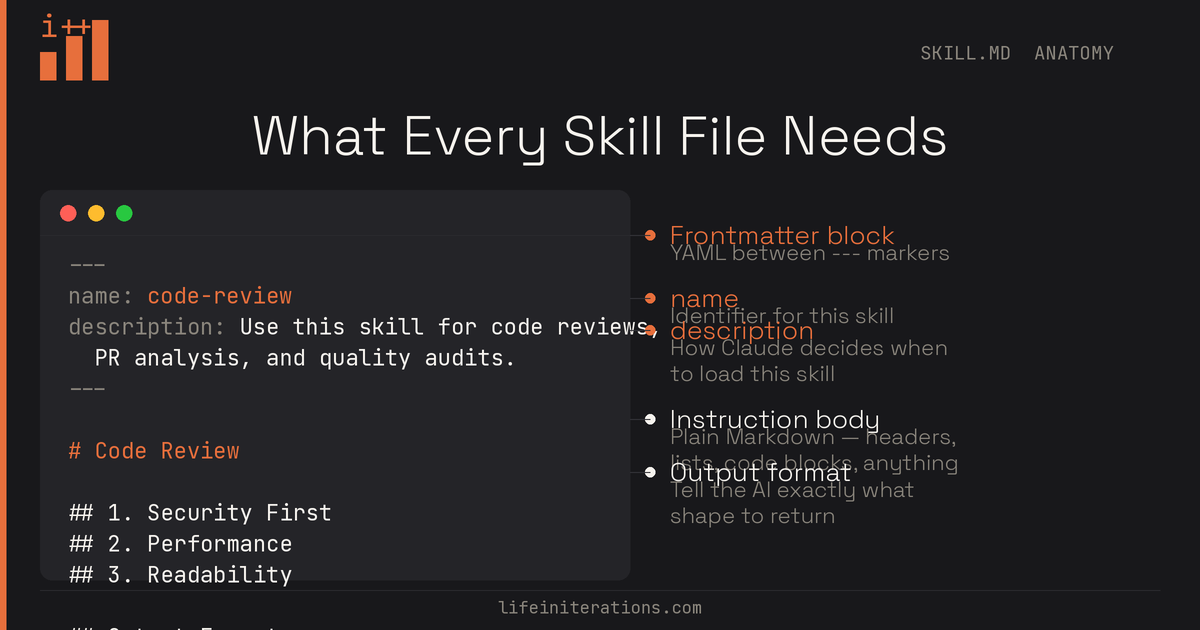
A skill file has two parts: a frontmatter block and the instruction body.
---
name: code-review
description: Use this skill when reviewing code, analyzing pull requests, or auditing
  code quality. Triggers on code review requests, PR feedback, and quality checks.
---

# Code Review

When reviewing any code, work through these priorities in order...
The frontmatter is the metadata block between the --- markers. Two fields matter:
nameis the identifier. It is how you and the AI refer to this skill.descriptionis what actually triggers the skill. Claude reads this description and decides whether to load the full skill based on what you are asking. A good description explains both what the skill does and when to use it.
The instruction body is everything below the frontmatter. This is just regular Markdown. Headers, lists, code blocks, tables, whatever format makes your instructions clearest. There are no special rules here beyond writing clearly.
Writing Your First Skill: A Practical Example
Let me walk through building a code review skill end to end. This is one I use daily, and it is a good example because it has clear trigger conditions and structured output format.
Create a file called SKILL.md anywhere on your machine. Here is the full content:
---
name: code-review
description: Use this skill for all code review tasks, pull request analysis, code
  quality checks, and technical feedback on any code. Triggers on requests like
  "review this," "give me feedback on," or "what is wrong with this code."
---

# Code Review

When reviewing code, evaluate in this priority order and structure your response accordingly.

## 1. Security First
- SQL injection, command injection, and cross-site scripting vulnerabilities
- Hardcoded credentials, API keys, or secrets in code
- Missing input validation or unsafe deserialization
- Authentication or authorization gaps

## 2. Performance
- N+1 query patterns in database calls
- Unnecessary loops or repeated operations
- Memory leaks or large allocations inside hot paths
- Missing indexes implied by the query patterns

## 3. Readability and Maintainability
- Functions longer than 30 lines that should be extracted
- Variable names that require comments to understand
- Missing error handling in critical paths
- Violations of the existing code conventions in the file

## Output Format

Return feedback grouped into three tiers:

**CRITICAL** — Must be fixed before this merges. Include line numbers and a corrected version.
**SUGGESTED** — Should be addressed. Explain why, but leave the decision to the author.
**NITPICK** — Optional polish. Prefix these with "Optional:" so authors can deprioritize easily.

If there are no issues in a tier, skip that section entirely rather than writing "None found."
That is a complete skill. It is specific enough to be useful, flexible enough to apply across languages, and it tells the AI exactly what to produce.
Using Your Skill in Claude Code (CLI)
If you use Claude Code (the terminal tool), skills live in a skills/ directory that Claude scans automatically. Place your SKILL.md in:
your-project/
└── skills/
    └── code-review/
        └── SKILL.md
Claude Code reads the description field and loads the full skill body whenever your task matches. You can also invoke it explicitly:
Use the code-review skill to review the auth module.
Invoking Skills Explicitly in Claude
Whether you are in claude.ai or Claude Code, explicit invocation always works. Just reference the skill by name:
- "Use the code-review skill on this file."
- "Apply code-review to the changes in this diff."
- "Review this with the security and readability guidelines from my code-review skill."
Claude reads the skill, loads the instructions, and applies them to your task.
The Part That Surprised Me: Skills Are Interoperable
Here is the thing nobody tells you upfront.
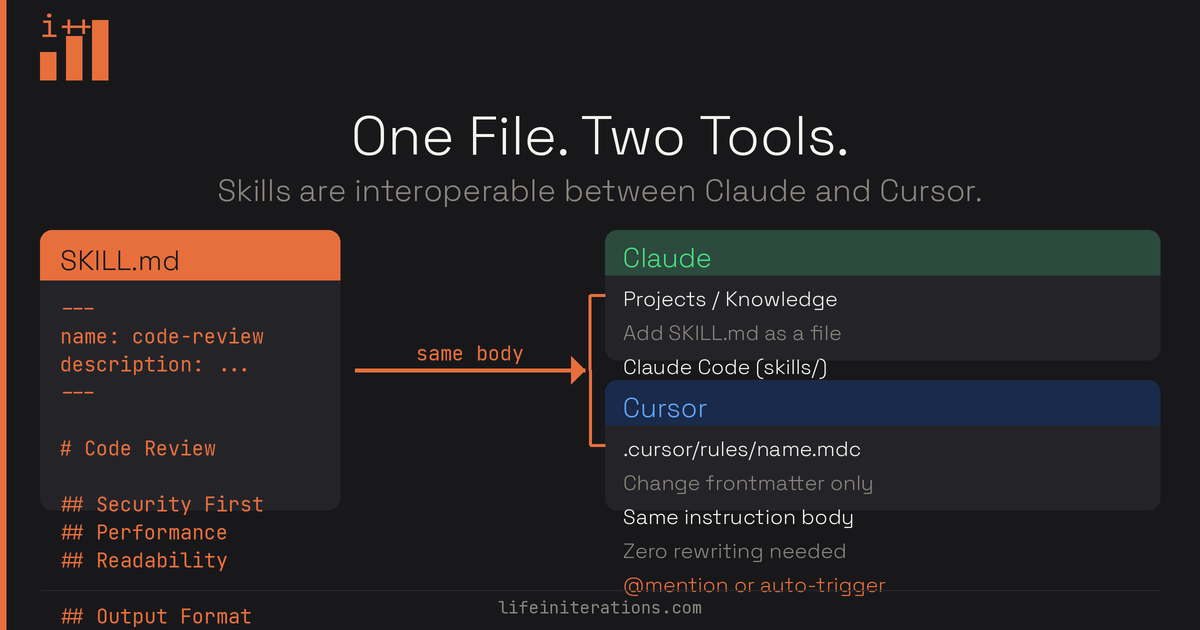
The SKILL.md file you just built for Claude works in Cursor with almost no changes.
Both tools use plain Markdown for their instruction files. The logic, the headers, the output format, all of it is the same. What differs is just the frontmatter structure and the file extension.
To use your code review skill in Cursor, create this file in your repository:
your-project/
└── .cursor/
    └── rules/
        └── code-review.mdc
The content of code-review.mdc is:
---
description: Use when reviewing code, analyzing pull requests, or auditing code
  quality. Apply when the user asks for a code review, feedback, or quality check.
globs:
alwaysApply: false
---

# Code Review

[paste the exact same instruction body from your SKILL.md here]
The instruction body is a straight copy-paste. You changed three things in the frontmatter: removed name, added globs and alwaysApply, and kept description with the same content.
That is it. One source of truth for your instructions, two tools that can use it.
How to Invoke Your Skill in Cursor
Cursor gives you four ways to control when a rule applies, and each has a different use case.
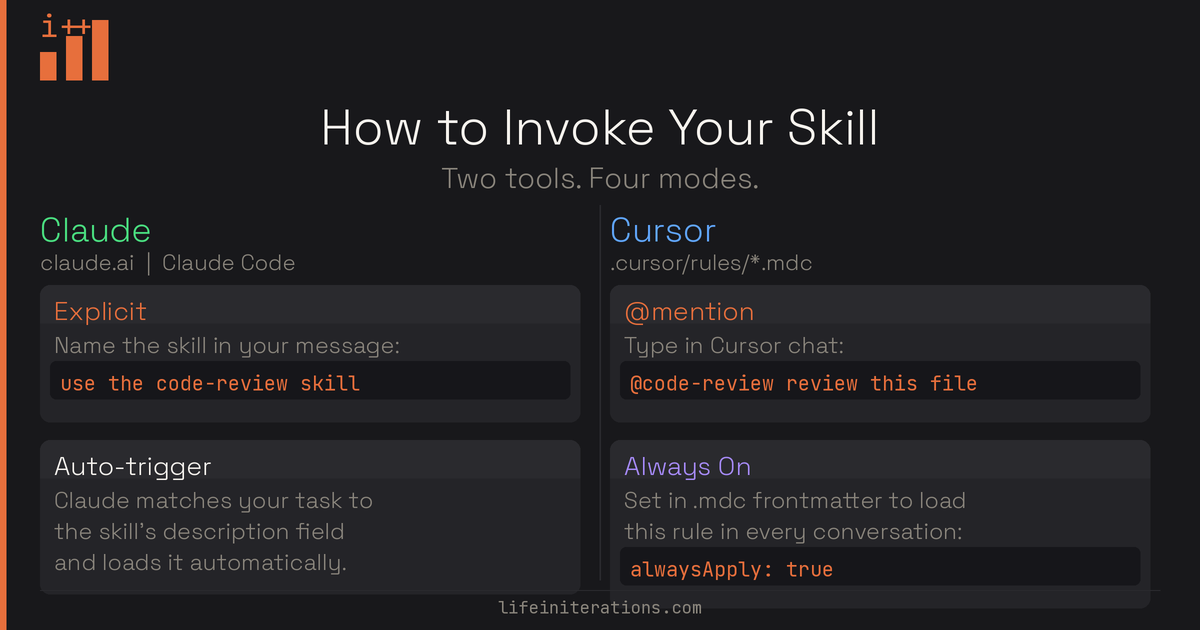
Manual: @mention in Chat
This is the most direct method. In any Cursor chat, type:
@code-review review the changes in this file
Cursor loads the rule and applies it to your request. This is the equivalent of explicit invocation in Claude.
Auto: Description-Based Triggering
If you fill in the description field in your .mdc frontmatter (which you already did above), Cursor's Agent will automatically load the rule when it determines the rule is relevant to your current task. You do not need to @mention it. This mirrors how Claude uses the description field to decide when to load a skill.
Always On: alwaysApply
For rules you want active in every single conversation in that project, set:
alwaysApply: true
This is useful for rules that define your project's coding style, naming conventions, or architectural constraints. The rule is always in context, whether or not the task seems related.
File-Based: Globs
If you want a rule to activate only when working with specific file types, use the globs field:
globs: "**/*.py"
Now this rule only activates when you are working with Python files. Useful for language-specific style guides or framework-specific patterns.
Practical Skill Ideas to Build Next
Once you have the pattern down, you can capture almost any repeatable workflow. Here are a few I have found genuinely valuable:
PR description template — The structure you want for every pull request. What to include, what to skip, how to describe breaking changes. Never write a bare "fixes bug" PR description again.
Database schema reviewer — Checks for missing indexes, inconsistent naming conventions, nullable fields that should not be, and missing foreign key constraints.
API design guidelines — REST conventions, error response shapes, versioning approach, authentication patterns for your stack. Paste this in before any API design session.
Commit message formatter — Conventional commits format, what goes in the body vs. the title, when to use feat vs fix vs refactor.
Tips for Writing Skills That Actually Work
A few things I learned the hard way:
The description is the trigger, so treat it like one. Vague descriptions like "helps with coding tasks" will not fire reliably. Be specific about the contexts, user phrases, and task types that should activate this skill. Write it from the perspective of someone reading it to decide whether this skill is relevant.
Use headers to create scannable structure. The AI reads your instructions sequentially, but good headers make it easier to follow the priority order. If security should come before readability in your code review, put the Security section first with a number.
Put the output format at the end. Instructions about what to do come first. Instructions about how to format the response come last. This mirrors how humans process tasks: understand what you need to do, then figure out how to present it.
Keep each skill focused. A skill that does code review and writes commit messages and designs APIs is really three skills in one file. Split them. Smaller, focused skills trigger more reliably and are easier to update.
Iterate from real sessions. The best time to improve a skill is right after a session where the AI did something you did not want. Open the skill file, find the instruction that did not account for that case, and add a line. Your skill library compounds over time.
Frequently Asked Questions
Are AI skills the same as reusable prompts?
Mostly, yes. An AI skill is a reusable prompt with structure and a trigger attached. Instead of pasting the same instructions into every chat, you save them once in a Markdown file (a SKILL.md for Claude, a .mdc rule for Cursor) and the tool loads them automatically when they are relevant. The reusable prompt is the content; the skill is that content plus the metadata that decides when it fires.
Do AI skills work in both Claude and Cursor?
Yes. The instruction body is plain Markdown, so it copies across without changes. Only the frontmatter differs: Claude uses a name and description in a SKILL.md file, while Cursor uses description, globs, and alwaysApply in a .mdc rule. Write the skill once and the same body runs in both tools.
Where do I put a SKILL.md file?
In Claude Code, place it under a skills/ directory with one folder per skill, for example skills/code-review/SKILL.md. Claude scans that directory automatically and loads the skill when your task matches its description. In Cursor, the equivalent file lives in .cursor/rules/ with a .mdc extension.
What is the difference between a skill and a system prompt?
A system prompt is always loaded and applies to every message in a session. A skill is loaded on demand: the tool reads the skill's description and pulls in the full body only when your task matches. That keeps your context lean and lets you build a library of small, focused skills instead of one bloated prompt you carry everywhere.
How does a skill's description trigger it?
The description is the trigger. Both Claude and Cursor read it and decide whether the skill is relevant to what you are asking, then load the body if it is. Vague descriptions like "helps with coding" fire unreliably, so spell out the contexts, user phrases, and task types that should activate the skill.
If this helped you, share it with a developer who is still pasting the same context block into every AI chat. They will thank you.