OpenCode for AI Coding: Evade Vendor Lock-In
OpenCode is the open source, model agnostic coding agent that lets you plug in Claude, GPT, Gemini, or your GitHub Copilot subscription without rewriting your workflow. Here's the full setup guide.

A few months ago I sat down to switch from one AI coding tool to another, and it took me an entire weekend.
Not because the new tool was hard to use. Because every shortcut I knew, every config file format, every little habit I had built was specific to the tool I was leaving. I had basically learned a dialect instead of a skill. Start fresh with a different vendor and you are relearning the dialect from zero.
That is the quiet cost of vendor lock-in, and it is everywhere in the AI coding tool space right now. Pick a tool, and you are usually picking a single model provider along with it. Want to try a different model because it is cheaper, faster, or just better at the task in front of you? Too bad, that is not how your tool works.
OpenCode fixes this by refusing to pick a side. It is open source, it is free, and it does not care which model you point it at. Here is what makes it worth your time, and exactly how to set it up, including using a GitHub Copilot subscription you might already be paying for.
What Vendor Lock-In Actually Costs You
Most AI coding agents are built around one model provider. Anthropic ships Claude Code. OpenAI ships Codex. Both are genuinely good tools. Both also tie your workflow, your config syntax, and your muscle memory to a single company's roadmap and pricing decisions.
This becomes a real problem the moment any of these things happen:
- A provider raises prices or changes its usage limits overnight
- A newer model from a different lab is suddenly better at the kind of work you do
- Your company has a compliance rule about where code can be sent
- You just want to compare two models on the same task without switching tools entirely
With a vendor locked tool, all four of those situations mean the same thing: stop, relearn a new tool, migrate your habits. With a model agnostic tool, they mean: change one setting.
What OpenCode Actually Is
OpenCode is an open source, MIT licensed AI coding agent that runs in your terminal, your IDE, or a standalone desktop app. It is a terminal-based AI coding agent built by the team behind SST (now Anomaly). It runs locally on your machine, connects to 75+ AI providers, and gives you full control over which models process your code.
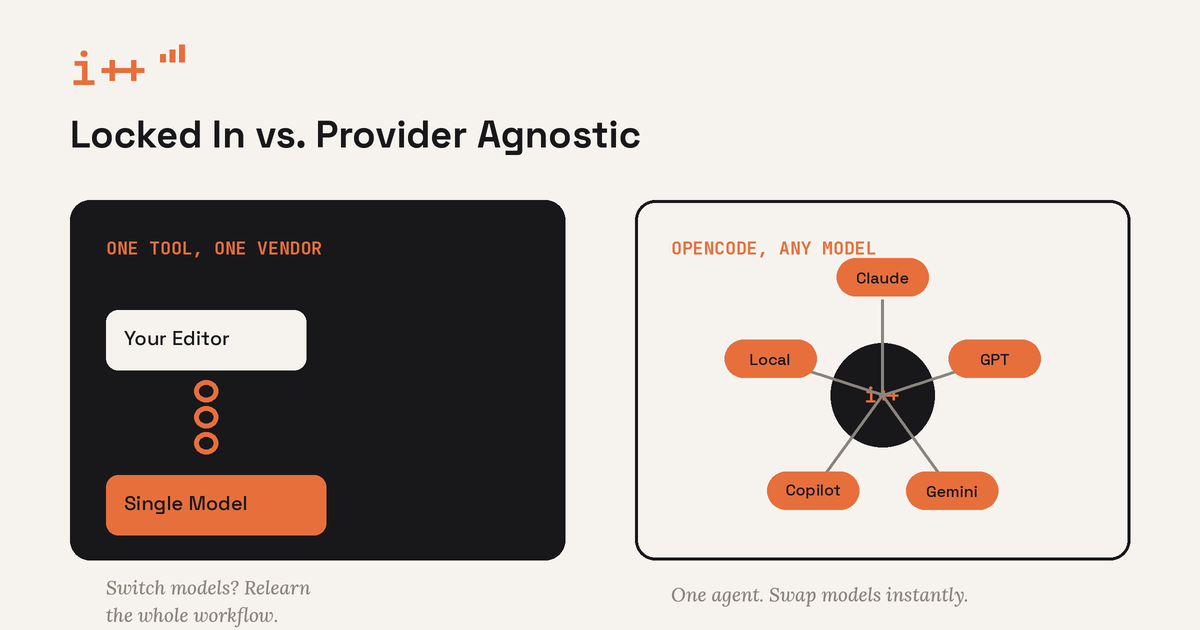
It is not a chatbot bolted onto your editor. It reads and edits files, runs shell commands, and tests its own work. Under the hood it spawns real Language Server Protocol servers for your project, so when a model makes an edit that breaks a type, OpenCode feeds that error straight back to the model so it can self-correct instead of you finding the bug three commits later.
The traction backs up the hype. OpenCode has over 160,000 GitHub stars, 900 contributors, and over 13,000 commits, and is used and trusted by over 7.5 million developers every month. That is not a side project. That is infrastructure a lot of people have already bet on.
Basic Setup
Getting OpenCode running takes less time than reading this section. Open a terminal and run the install script:
curl -fsSL https://opencode.ai/install | bash
Prefer a package manager? OpenCode supports the usual suspects:
# npm
npm i -g opencode-ai@latest

# Homebrew (macOS and Linux)
brew install opencode

# Windows via Scoop
scoop install opencode
Once installed, just run opencode from any project folder to launch the terminal interface. The first thing it will ask you to do is connect a model provider, which brings us to the part most people get stuck on.
Connecting a Provider
Inside OpenCode, run the connect command:
/connect
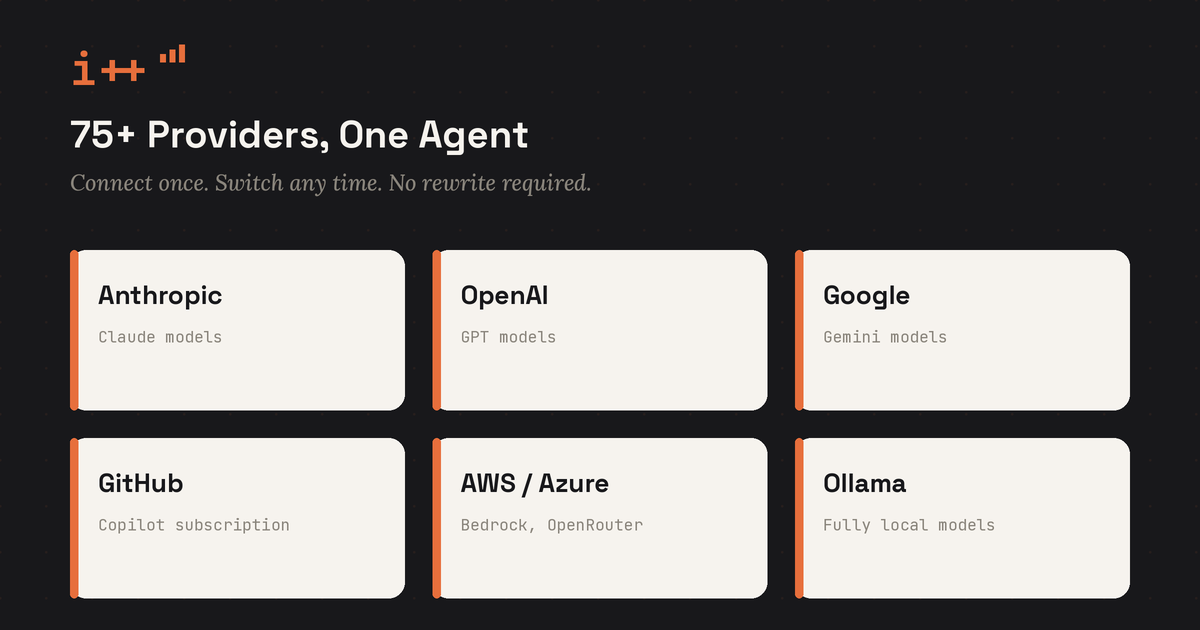
This opens a searchable list of every supported provider. Pick one, follow the authentication prompt (usually an API key paste or a browser based login), and you are done. Provider credentials get stored locally so you only do this once per provider. You can connect as many providers as you want side by side and switch between them with:
/models
That single command is the entire "no vendor lock-in" pitch in practice. No reinstall, no migration, just a model picker.
Setting Up OpenCode With Microsoft (GitHub) Copilot
Here is the part that makes OpenCode an easy yes if you already pay for a Microsoft Copilot subscription through GitHub. GitHub officially supports using your Copilot Pro, Pro+, Business, or Enterprise subscription with OpenCode, no additional AI license needed. You are not paying twice. You are pointing a better interface at a subscription you already own.
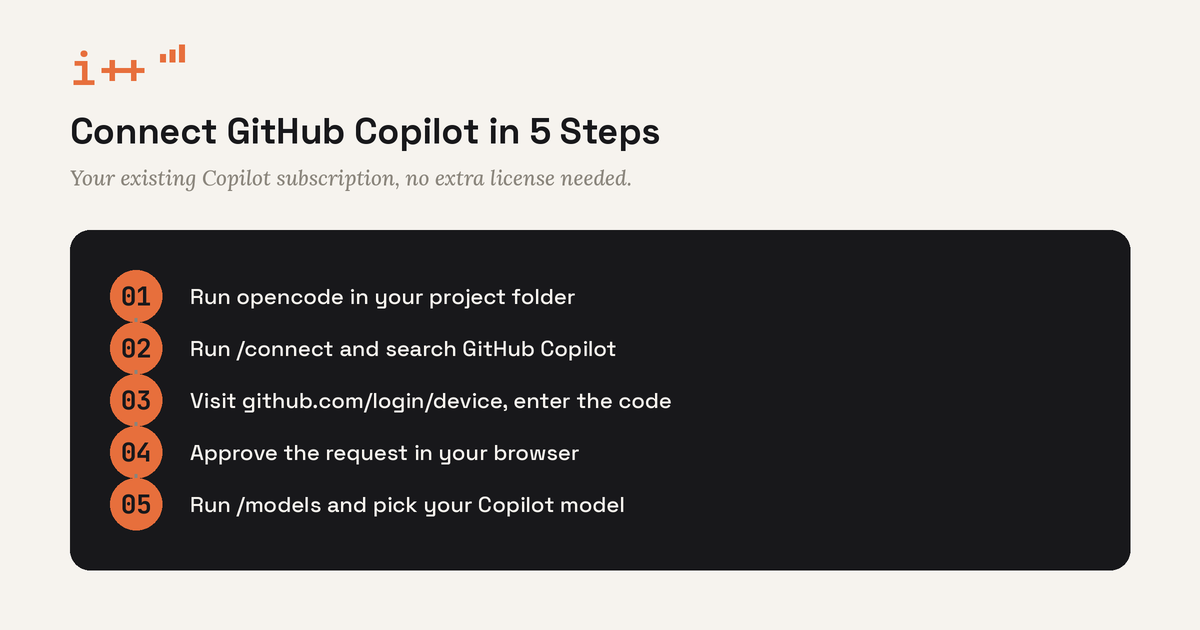
Here is the setup, step by step:
- Launch OpenCode in your project folder by running
opencode. - Run
/connectand search for GitHub Copilot in the provider list. - Navigate to github.com/login/device and enter the code shown in your terminal. This is a standard device authorization flow, the same kind of login you have probably used for a smart TV app.
- Approve the request in your browser. OpenCode confirms the connection in the terminal.
- Run
/modelsand pick the Copilot backed model you want to use for this session.
That's it. Once you are done authenticating, you will be able to choose the model using the /model command. From here, Copilot is just one more entry in your provider list, sitting right next to Claude, GPT, or Gemini, with zero special treatment and zero lock-in to OpenCode itself.
One thing worth knowing if you hit a wall: OpenCode stores credentials in auth.json under its local storage directory, so when something changes like an expired authorization or a policy update, you may need to re-run /connect to refresh credentials. If a session ever throws an auth error, that is almost always the fix.
The Real Win: Switching Models Without Switching Tools
This is the habit shift that actually matters. Once OpenCode is set up, your workflow stops being "open the Claude tool" or "open the Copilot tool." It becomes "open OpenCode, then pick whichever model fits the task."
Need a fast, cheap model to scaffold a boilerplate file? Pick a lighter one. Working through a gnarly refactor that needs real reasoning? Switch to a frontier model for that session. Curious whether a brand new release actually outperforms what you have been using? Connect it and find out in the same project, with the same commands, with nothing else changing.
Where This Fits With the Rest of Your AI Toolkit
If you have read my post on building AI skill files for Claude and Cursor, OpenCode slots into the same philosophy. Just like a skill file is a portable instruction set instead of a vendor specific habit, OpenCode is a portable runner instead of a vendor specific tool. Pair the two and you get reusable instructions running on whichever model is actually best for the job that day.
Vendor lock-in in AI tooling is rarely a dramatic moment. It is death by a thousand small habits, each one tying you a little tighter to a company's pricing page. OpenCode is the easiest insurance policy I have found against that. Install it once, connect whatever providers you already pay for, and keep your options open.