Debugging a Cron Job
Your cron job shows up in the logs. Session opened, command called, session closed — neat as a pin. And yet nothing actually happens. Here is the exact debugging trail that cracked mine open, from burned mail to a permission error on line three.

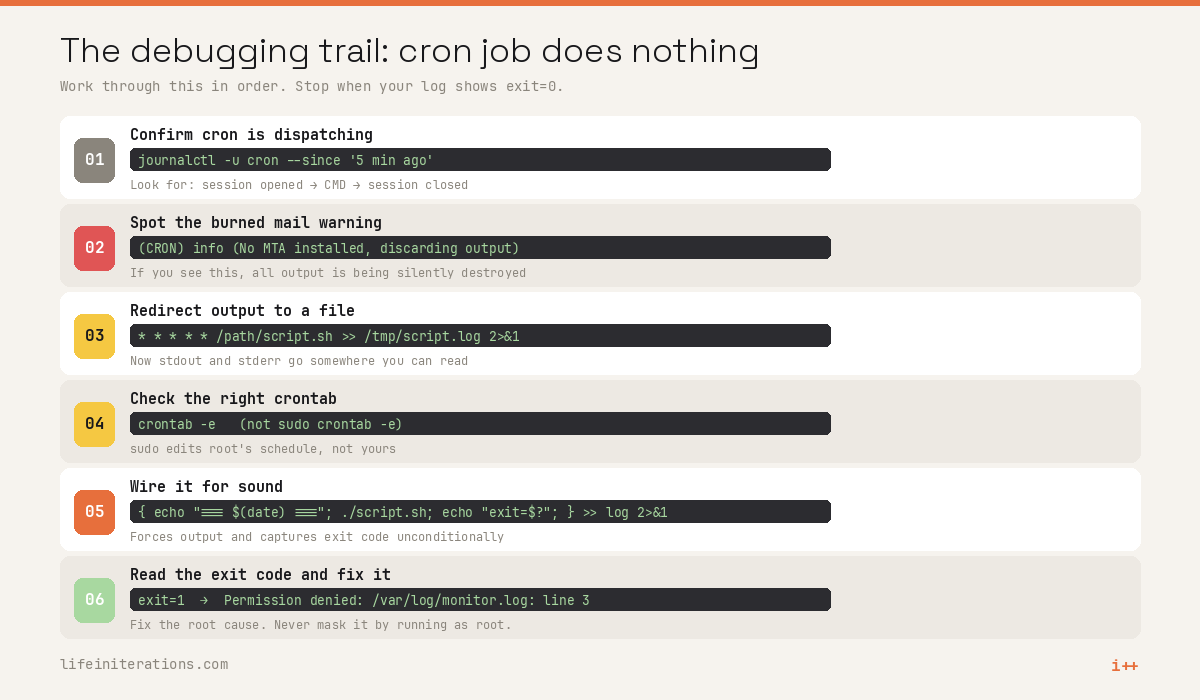
Your cron job runs. You can see it in the logs. Session opened, command called, session closed, neat as a pin. And then... nothing. No output. No side effects. No sign that anything actually happened.
It's one of the most maddening problems in Linux because the evidence tells you everything is fine, right up until you look at the result and realize it very much is not.
What the Script Actually Does
Before we get into the debugging, here's what monitor.sh is supposed to do when it runs correctly.
Each day at 10 AM, the script does two things:
CPU utilisation logging. It reads from /proc/stat, calculates the rolling 24-hour CPU usage on the Pi, and writes it to a local log. The idea is to keep an eye on what the home lab is doing without reaching for a full monitoring stack. I'll write a dedicated post on this: how the calculation works, what to do with the data, and how to visualize it.
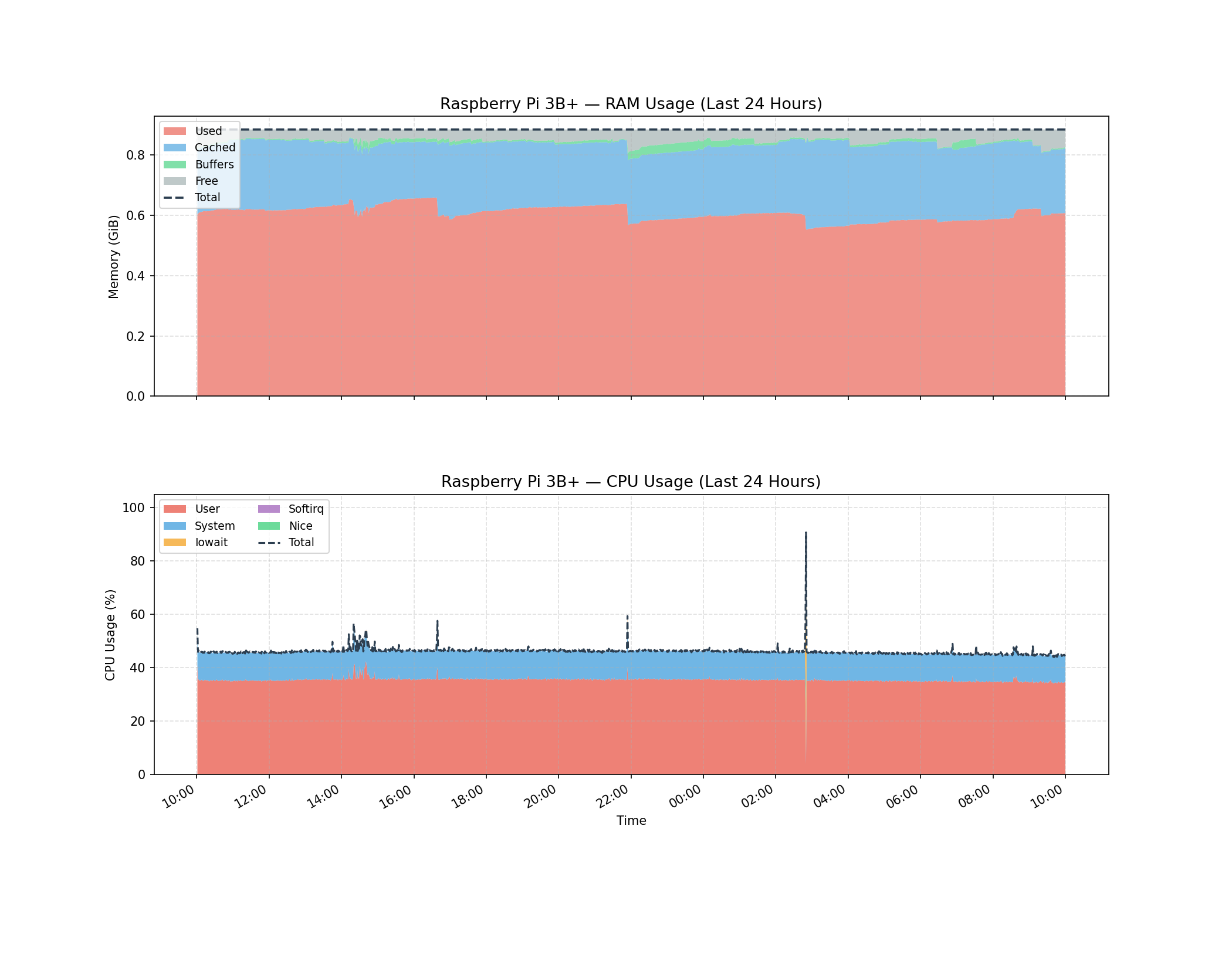
MySQL backup to Google Drive. It runs mysqldump, compresses the output, and ships the archive offsite using rclone to a GDrive folder. Timestamped, automated, zero-touch. I will publish another story on whole setup story here around getting rclone authenticated and keeping credentials safe on a Pi.
Step 1: Confirm Cron Is Actually Running Your Script
Before assuming anything is wrong with your script, rule out the dispatcher. Cron should be easy to verify.
Check the system journal:
journalctl -u cron --since "5 minutes ago"
Or on systems that write to syslog:
grep CRON /var/log/syslog | tail -20
What you want to see looks like this:
Jun 21 14:46:01 pi CRON[953464]: session opened for user pi(uid=1000)
Jun 21 14:46:01 pi CRON[953466]: (pi) CMD (/home/pi/platform/monitor.sh)
Jun 21 14:46:01 pi CRON[953464]: session closed for user pi
Three lines per run: session opened, command name, session closed. If you're seeing these, cron is doing its job. The problem is downstream.
In my case, there was a fourth line sitting quietly right after those three, and that's the one that mattered:
Jun 21 14:46:01 pi CRON[953464]: (CRON) info (No MTA installed, discarding output)
Step 2: Understand the Burned Mail Problem
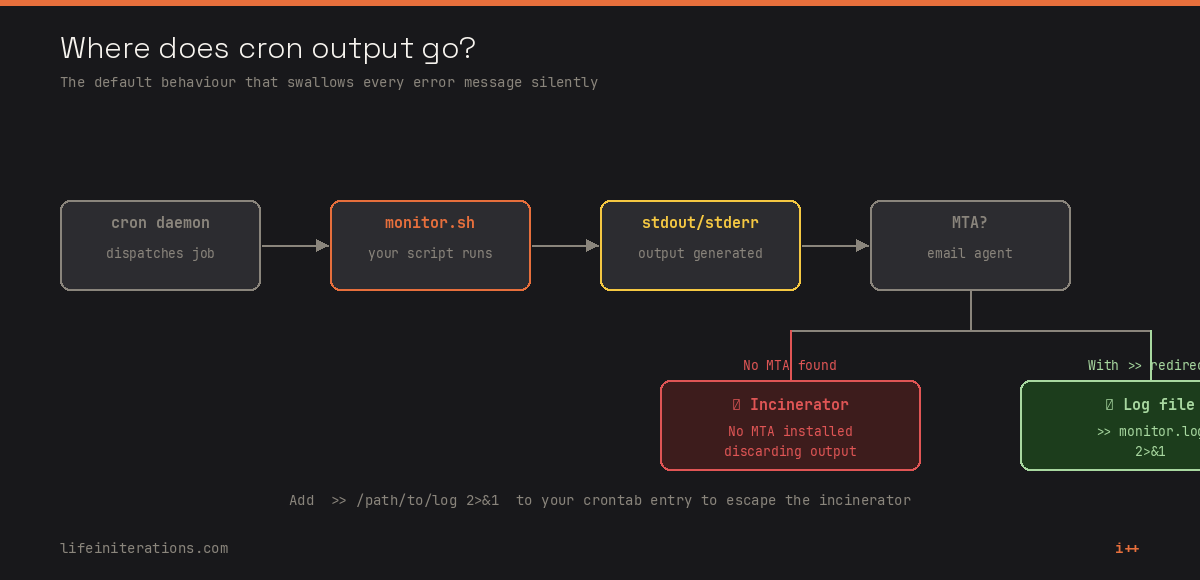
By default, cron tries to email you the output of your jobs. That's its original design from the days when every Unix box had a local mail system. If your script prints anything to stdout or stderr, cron collects it and hands it off to the local mail transfer agent to deliver.
The problem is that most modern systems don't have an MTA installed. No local mail carrier. So cron dutifully collects your script's output, tries to hand it off, finds nobody home, and quietly incinerates every message. That's exactly what "No MTA installed, discarding output" means.
Your script could be printing error messages every single minute. You'd never know, because they're all hitting the incinerator on the way out.
The fix is to stop relying on the mail system and redirect output to a log file you control.
Step 3: Redirect Output to a Log File
Update your crontab entry to capture both stdout and stderr:
* * * * * /home/pi/platform/monitor.sh >> /tmp/monitor.log 2>&1
Breaking that down:
>>appends stdout to the log file (use>if you want to overwrite each run instead of accumulating)2>&1redirects stderr to the same destination as stdout
Now every word your script says, every error it throws, goes into /tmp/monitor.log instead of disappearing into the void.
Wait one minute, then check:
cat /tmp/monitor.log
In my case, the log was completely empty. Which meant we had a different kind of problem.
Step 4: The Empty Log Trap
An empty log after adding the redirect points to one of two things.
The first is that you edited the wrong crontab. If you ran sudo crontab -e instead of crontab -e (without sudo), you edited root's cron schedule, not your user's. Root's runner walks a different route entirely. The syslog would still show the No MTA, discarding output line because the original user's job is still running under the old instructions, untailed.
Always edit the right crontab for the right user:
# Your own user
crontab -e

# A specific user (as root)
sudo crontab -u pi -e
The second possibility is grimmer: the script is running, but it's dying before it produces any output at all. Not failing loudly. Just dying quietly at some early line with no chance to say anything.
Step 5: Wire the Script for Sound
The way to tell "silent success" from "silent failure" is to wrap the crontab entry so it produces output unconditionally, regardless of what your script does:
* * * * * { echo "=== ran $(date) ==="; /home/pi/platform/monitor.sh; echo "exit=$?"; } >> /tmp/monitor.log 2>&1
Three things happening here:
echo "=== ran $(date) ==="prints a timestamp banner before the script runs. If this shows up in the log, the job is definitely firing./home/kirti/platform/monitor.shruns the script as normal.echo "exit=$?"captures and prints the exit code immediately after.0means success. Anything else means something went wrong.
After waiting a minute and checking the log, I finally got an answer:
=== ran Sun 21 Jun 14:56:01 IST 2026 ===
/home/pi/platform/monitor.sh: line 3: /var/log/monitor.log: Permission denied
exit=1
There it was 😌
Step 6: The Actual Culprit
Line three of my script was trying to write to /var/log/monitor.log. And /var/log is owned by root. A regular user account can't write there. So the script hit that door on its very first real action, got turned away immediately, and exited with code 1.
It had been doing this every single minute. The dispatcher kept signing it out on schedule, the script kept dying three lines in, and the burned mail meant the error was never visible to anyone.
Every minute, dying loud in the one part of town where the screaming gets thrown in the furnace.
The Fix (Three Ways)
There are three ways to solve a permission problem like this, and they are not equally good.
The Easy Way: Write Somewhere You Actually Own
The cleanest fix is to stop writing to a directory you don't own. Change line three of the script to point somewhere under your home directory:
# Before (monitor.sh line 3)
exec >> /var/log/monitor.log 2>&1

# After
exec >> /home/kirti/platform/monitor.log 2>&1
Your user owns that path. The door opens every time. This is the one I used and I'd recommend in almost every case.
The Proud Way: Get a Room in /var/log with Permission
If you genuinely need the log in /var/log for organizational reasons, you can create a subdirectory there and grant your user ownership. Make it a directory, not just a single file. Log rotation tools can recreate files under root ownership and lock you out again:
sudo mkdir -p /var/log/monitor
sudo chown kirti:kirti /var/log/monitor
# Then point line 3 at /var/log/monitor/monitor.log
This is fine if you have a real reason for it. Just keep the logrotate gotcha in mind.
The Bad Way: Don't Do This
Some people will tell you to just run the whole cron job as root so it can write anywhere. Don't. You're handing a monitoring script the keys to the entire system so it can write one log file. Principle of least privilege. Give the job exactly the permissions it needs and not one more.
After the Fix
Once you fix the log path, keep the banner wrapper in your crontab for one more cycle so you can actually watch the job complete:
=== ran Sun 21 Jun 14:57:01 IST 2026 ===
[CPU utilisation output]
[rclone backup confirmation]
exit=0
Exit code 0. The script walks right past the old permission wall and does what it was always supposed to do.
The whole thing looks complicated when you're in it, but the methodology is straightforward. Make the silent thing speak, one layer at a time, until it tells you what it's been hiding.